
WiFi Not Working? Troubleshooting Guide for Combustion WiFi AccessoriesUpdated 2 months ago
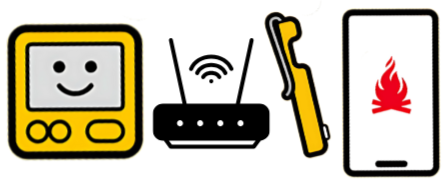
Your Combustion WiFi tools (the WiFi Display, WiFi Booster, and Giant Grill Gauge) do two jobs: they extend how far your Predictive Thermometer can reach, and they bridge your cook to the cloud so you can watch it from anywhere. This guide covers everything connectivity-related for all of them.
First, how your Combustion devices connect
Almost every connection question comes down to knowing which radio is doing what. There are three:
- Bluetooth carries temperature data from the Predictive Thermometer to your phone, your Display, and any Boosters. This is what gives you live readings and lets you set targets. On its own, Bluetooth is short-range.
- MeatNet range extension is how that Bluetooth signal reaches farther. Every Display or Booster automatically repeats the signal from your linked tools, adding roughly 330 ft of clear line-of-sight range per "hop," dropping to about 50 ft through walls, metal, or a closed smoker.
- WiFi does one job: it uploads your cook data to the cloud so you can check it when you are away from the grill and out of Bluetooth range. WiFi does not give you live local readings, and it does not replace Bluetooth.
Two takeaways that resolve the most common confusion:
- If a reading drops when you walk away, that is a Bluetooth range issue, not a WiFi one. Adding WiFi will not fix it. See "Losing connection or dropping out."
- If you cannot see your cook while away from home, that is a WiFi and cloud issue. See "Watching your cook away from home."
Start Here: The 3 Quick Fixes
Before anything else, try these. They resolve the majority of hiccups on any device:
- Power-cycle the device.
- *Display:* hold min/- and Start/Stop together for about 10 seconds, then tap Start/Stop to power back on.
- *Booster:* press and hold the LED button for about 1 second until it powers off, wait a moment, then press again.
- Reconnect it to your thermometer. With everything powered on, hold the device and the thermometer next to each other for about 10 seconds. Running several tools? See How to Link All Tools (Multi-Node MeatNet™): The Cuddle Pile so everything links to everything.
- Check your charging setup. Use a working USB-C cable and a standard 5V USB power source. Avoid high-voltage "fast charge" bricks. A fully drained Display charges in about 90 minutes; a Booster in about 60 minutes.
Still stuck? Find your specific symptom below.
Reading Your Device's Lights and Screen
Knowing what is normal saves a lot of worry.
WiFi Booster (LED):
Light | What it means |
| Amber | Charging (the Booster's battery and/or the thermometer inside). On old firmware this may blink amber, so update firmware. |
| Green | Fully charged. |
| 3 white blinks | Searching for linked tools within range |
| Single white blink every 5 sec | Connected and repeating the signal. This is the healthy "I am working" signal. |
| Quick red blink | Low battery, time to recharge. |
| Quick blue blink | Connected to WiFi (WiFi Boosters only). |
| No light when plugged in | Not receiving power, see "Won't turn on." |
More than one pattern can run at once, so a "confusing" light is usually two simple patterns overlapping (for example, searching plus WiFi connected).
WiFi Display (screen):
- The battery icon shows charging status, not a percentage.
- Moving dashes mean it is searching for a linked device.
- The backlight color is adjustable and is a preference, not a status code.
- Flashing red and screeching is a safety alarm, not a fault. See "Flashing red and screeching."
Can't Get a Device Onto WiFi (Setup)
- Use the 2.4 GHz band only. Combustion WiFi radios do not use 5 GHz. If your router broadcasts both bands under one network name, your phone may hand the device a 5 GHz network it cannot join.
- Check your security type. Open, WPA, WPA2, and WPA3 Personal are supported. Sign-in-page (captive portal) networks common at hotels, offices, and guest WiFi are not.
- Keep the network name simple. Emoji, accents, or special characters in the network name (SSID) can block a connection. Plain letters and numbers work best.
- On a mesh system (Orbi, eero, Google Nest): the low-power WiFi chip locks onto one access point when it powers on and does not roam between nodes. Set the device up in its final location, power it on there, and give it about a minute to connect.
- Confirm the device is on WiFi: a Booster shows a quick blue blink when its WiFi connection is live.
"Password incorrect," "timed out," or "failed to register the device"
If setup keeps rejecting a password you know is right, times out, or says it cannot register the device:
- Confirm you are joining the 2.4 GHz network specifically. A "wrong password" error is very often the device being handed the 5 GHz network by mistake. On dual-band routers, either select the 2.4 GHz network by name or temporarily give the two bands different names.
- On mesh routers, band steering causes the same false password error. Temporarily disabling band steering, or setting the device up right next to the router, gets it onto 2.4 GHz cleanly. You can move it afterward.
- Restart your router: unplug it for 30 seconds, plug it back in, and wait 2 to 3 minutes.
- Restart the WiFi setup flow in the app from the beginning after each change. After restarting the router, try to connect again, but this time do it as close to the router as possible
Connected to WiFi but Keeps Dropping
If a device joins WiFi but keeps losing the connection:
- Mesh users: re-do setup in the device's final location (see above), since it will not follow you between nodes.
- Restart your router and confirm the basics: a 2.4 GHz network, the correct password, and the device within reasonable range of the router.
- Showing offline on cellular but fine on home WiFi? The device may have been set up under a different Combustion account. Re-run WiFi setup while signed into the correct account.
Losing Connection or Dropping Out When You Walk Away
This is the most common "connection" report, and it is almost always Bluetooth range rather than WiFi:
- The live signal follows Bluetooth, not WiFi. Walking away with your phone moves it out of Bluetooth range. WiFi does not take over for live local readings.
- Extend the range with a relay. Place a Booster or Display between the cook and where you will stand. Each adds a hop of roughly 330 ft in the clear, about 50 ft through obstacles.
- A thermometer sitting in a Booster does not relay. Cradling a thermometer turns that Booster's relay radio off, because it switches to charging mode. Keep the probe out of the Booster if you want it extending range.
- Foil, closed lids, and thick metal smokers block signal. Wrapping a probe in foil or closing a heavy lid weakens the connection. Keep a relay close to the cook with a clear line of sight.
- Multiple thermometers: each Booster links up to 4 thermometers. For more, add another Booster or Display
Watching Your Cook Away From Home (Remote / Cloud)
WiFi plus a free Combustion (MeatNet Cloud) account lets you check a cook from anywhere with internet. What you need:
- A Combustion WiFi tool left powered on and connected at home (WiFi Display, WiFi Booster, or Giant Grill Gauge), or a spare internet-connected device at home running the app to upload data.
- Your phone with the app to view remotely.
For full setup, see MeatNet™ Cloud: Setup and Remote Monitoring.
If it only works at home, or you see no online devices when away:
- One account everywhere. The home device that uploads and the away phone that views must be signed into the same Combustion account. A device set up under a different account shows offline when you leave.
- Leave an uploader running at home. Remote viewing needs a WiFi tool (or a spare device with the app) powered on and connected the whole time. If everything travels with you, nothing is left to upload.
- Confirm the device is actually on WiFi, not just powered on. Re-run WiFi setup if needed.
- Cooking control still needs Bluetooth range. Away from home, you get live readings, graphs, predictions, and notifications; you set targets and SafeCook when back in Bluetooth range.
Firmware Update Won't Complete
Updates go smoothly when only one device is talking to the app:
- Update the Combustion app to the latest version first.
- Power on only the device you are updating. Turn off other thermometers, Boosters, and Displays. For a Booster update, if possible, set the thermometer on a basic charger so it stays powered off.
- In the app: Settings → Update Devices → select your device, then wait for it to finish.
- If it stalls at "Update - Starting," wait a few minutes, close and reopen the app, and retry with only one device on.
- If it finishes and re-enters update mode, that is normal. If the app says it is up to date, you can safely exit.
- 1st Generation Display not appearing in Update Devices? Make sure it is powered on and close to your phone with the app open.
Device-Specific Quick Fixes
WiFi Display won't turn on, won't charge, or won't show temps
- Try a different USB-C cable and power source, and give a drained Display the full 90 minutes to charge.
- No temps or can't find the thermometer? Take the thermometer out of its charger or Booster to wake it, then re-link by holding the two together for about 10 seconds. Reduce signal blockers (metal, water, brick, glass, people).
- Won't turn off? Hard reset (min/- + Start/Stop, 10 seconds); if it wakes while plugged in, unplug first.
WiFi Booster won't turn on, won't charge the thermometer, or won't seat it
- No lights: try a different cable and power source, and give it a full 60 minutes on a flat battery.
- Won't charge the probe? Clean the metal contact at the base of the thermometer's handle (cooking oil builds up there) with a cotton swab and isopropyl alcohol, let it dry, and reseat. A full probe recharge takes about 20 minutes.
- Thermometer won't stay seated or pops loose? A small number of Boosters shipped with a holder that does not grip tightly enough. Do not keep troubleshooting this one; see the last section.
Giant Grill Gauge
- The GGG connects to WiFi and MeatNet Cloud the same way as the Display and Booster. Use the setup and WiFi steps above.
For deeper, device-specific hardware issues, see the WiFi Display and WiFi Booster troubleshooting guides.
Resetting, Unlinking, and Renaming (Reference)
| What you want | How to do it |
Power a Display on/off | Hold Start/Stop ~1 sec (on); hard reset to force off |
Hard reset a Display | Hold min/- and Start/Stop together ~10 sec |
Power a Booster on/off | Hold the LED button ~1 sec |
Full reset a Booster (clears linked devices, fixes "linked wrong") | Remove the thermometer, then hold the button ~10 sec |
Re-link a device with a thermometer | Hold the two together ~10 sec |
Re-link everything at once | Re-link with your Display and thermometers → See How to Link All Tools (Multi-Node MeatNet™): The Cuddle Pile |
Start over on WiFi | Re-run WiFi setup in the app and choose your 2.4 GHz network |
A note on naming: you can rename your thermometers in the app, but renaming the Display or Booster is not currently supported.
Still Need a Hand?
We are happy to help. Email [email protected]. To get you sorted fastest, please include:
- Your order number
- What you are seeing, ideally with a short video or photo of the light, screen, or behavior
- Which devices you are using together (thermometer only, or with a Display, Booster, or GGG)
- Your router type and band if it is a WiFi issue
- What you have already tried from this guide
Contact your ISP if:
- Reset procedures don't resolve the issue
- Other devices can't connect to internet
- You experience repeated disconnections
- Router status lights show abnormal patterns
[Related keywords: wifi troubleshooting, wifi not working, won't connect to wifi, can't connect to wifi, wifi password incorrect, wifi keeps saying wrong password, failed to register device, device won't register, 2.4ghz vs 5ghz, mesh wifi orbi eero google nest, band steering, wifi keeps dropping, connection keeps dropping, loses connection when I walk away, drops out during cook, out of range, bluetooth vs wifi, how does the booster work, does it need wifi, monitor cook remotely, remote monitoring, only works at home, cloud mode, meatnet cloud, watch cook from anywhere, wifi display won't connect, wifi display won't turn on, wifi booster not connecting, booster no light, booster won't charge thermometer, giant grill gauge wifi, ggg wifi, how to reset wifi display, how to reset booster, unlink device, rename display, firmware update stuck, wifi, wi-fi]